Plan Mode
Features related to task planning and execution strategies
Dual Model
Use different models for planning and execution.
Dual model lets you choose one AI model for planning and another for execution. This means you can use a smarter, more expensive model to plan the steps, but save money by using a cheaper model to carry out the tasks. Each model gets to do what it does best.
Advantages:
- Save money by not using an expensive model for every step
- Take advantage of different strengths—some models are better at planning, others at doing
Cursor supports dual-model configuration. You can change the model at any time in your chat session by using the model selector dropdown.
This allows you to use different models for planning and execution without needing to restart your session.
Claude Code previously supported dual-model configuration. However, this feature has been removed.
Evidence of previous support:
- Tweet showing dual-model feature - demonstrates the feature when it was available
Kilo Code supports dual-model configuration. Just switch the model in the model selector when needed.
You can use different models for the planning phase (Architect mode) and the execution phase to optimize for both quality and cost.
OpenCode supports dual-model configuration. You can select another model for implementation after creating your plan.
This allows you to use a high-quality model for planning and potentially a faster/cheaper model for executing the individual steps.
No additional details for this agent.
No additional details for this agent.
Questions
Let agents ask clarifying questions.
When writing out a task, it’s easy to overlook details or leave out important information. As humans, we make mistakes and have blind spots. Agents that ask clarifying questions can help identify these gaps in your instructions, making sure nothing critical is missed.
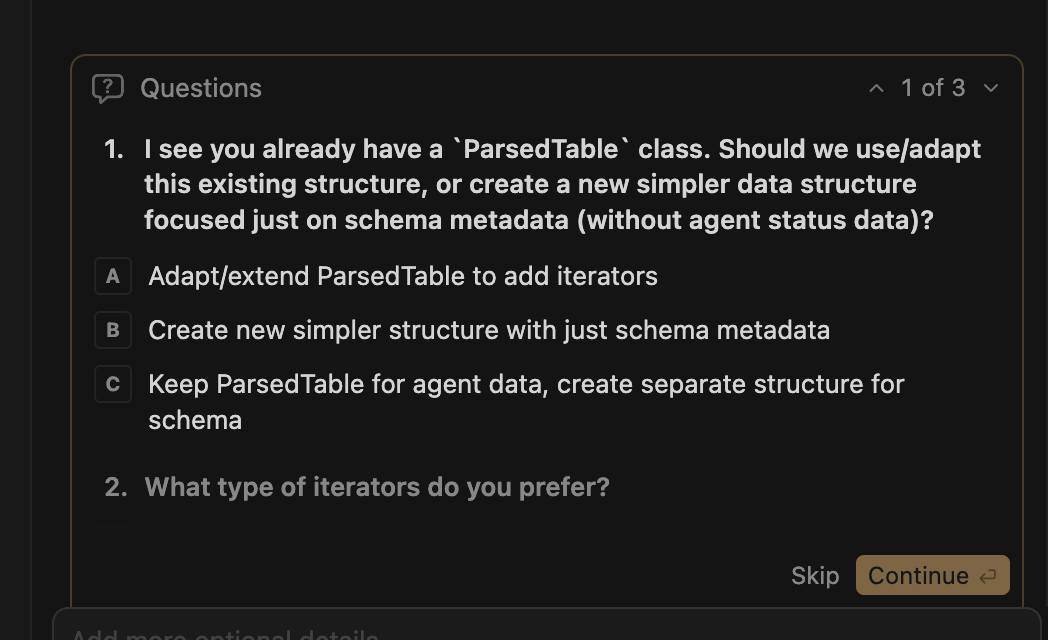
Cursor can ask clarifying questions in Plan mode. Sometimes Cursor will automatically ask you about specific features or requirements to ensure it understands your task correctly.
This helps fill in any missing details and ensures the agent has all the information it needs to create an effective plan.
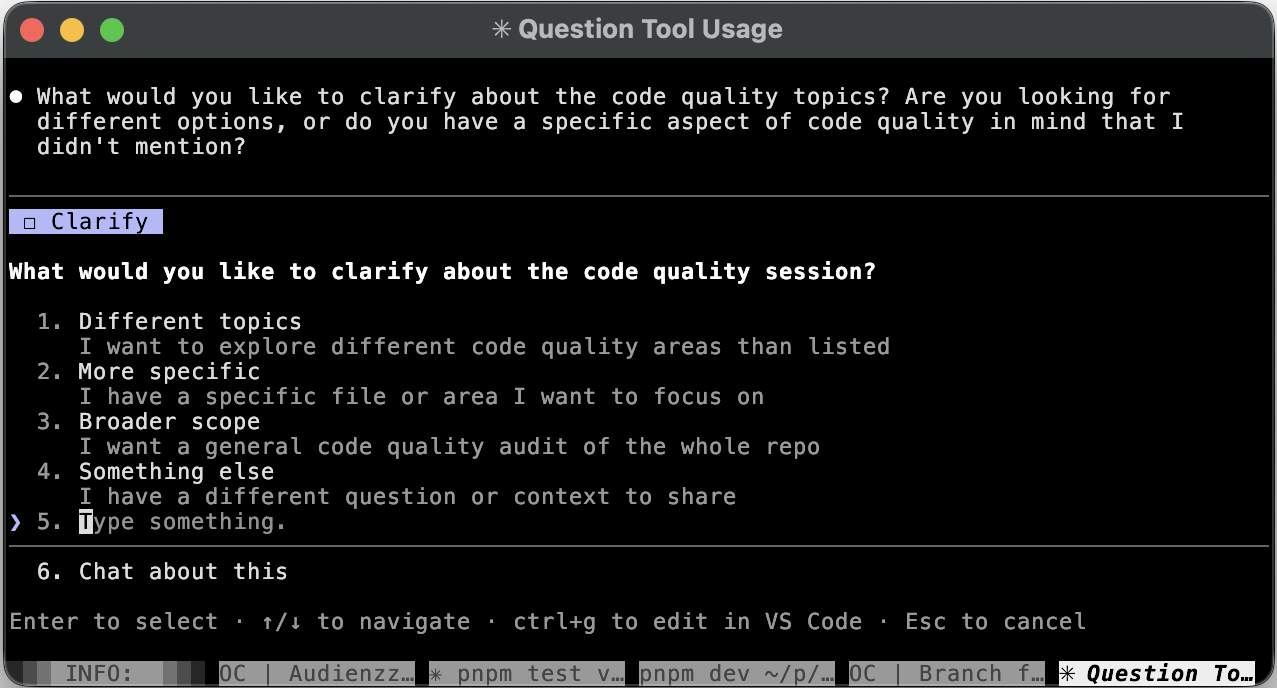
Claude Code has some limitations in question mode:
- The answer input is not interactive. You cannot use @-autocomplete within it.
Kilo Code can ask clarifying questions in Architect mode, similar to Cursor.
It will sometimes ask about specific features or requirements to ensure it understands your task correctly before creating the plan.
OpenCode can ask clarifying questions. It prints questions at the end of each message response.
This allows you to review and answer any clarification requests before the agent proceeds with planning or execution.
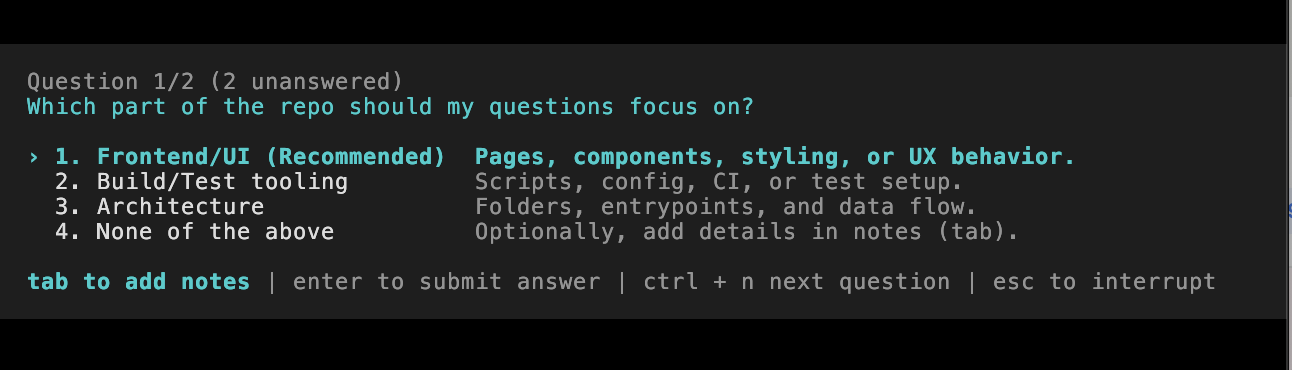
Codex has excellent support for clarifying questions.
Supported:
- Multiple questions in sequence
- Preview all questions before answering
- Add notes to any answer for additional clarification
Not supported:
- @-autocomplete in the notes field
No additional details for this agent.
Plan Editing
Edit plans directly without running the model.
Make precise, targeted edits directly in the plan instead of running the model.
Sometimes we need to make changes to the plan. We could ask the model, “please, fix the plan: [proposed changes].” However, it’s often easier and more efficient to edit the plan directly rather than try to get the model to interpret your intended changes.
Cursor supports direct plan editing in plan mode. You can edit the plan steps directly in the interface before execution.
This allows you to make precise, targeted changes to the plan without needing to ask the model to modify it, which can be faster and more accurate.
Press Ctrl+G to open the editor and modify your message before sending.
No additional details for this agent.
No additional details for this agent.
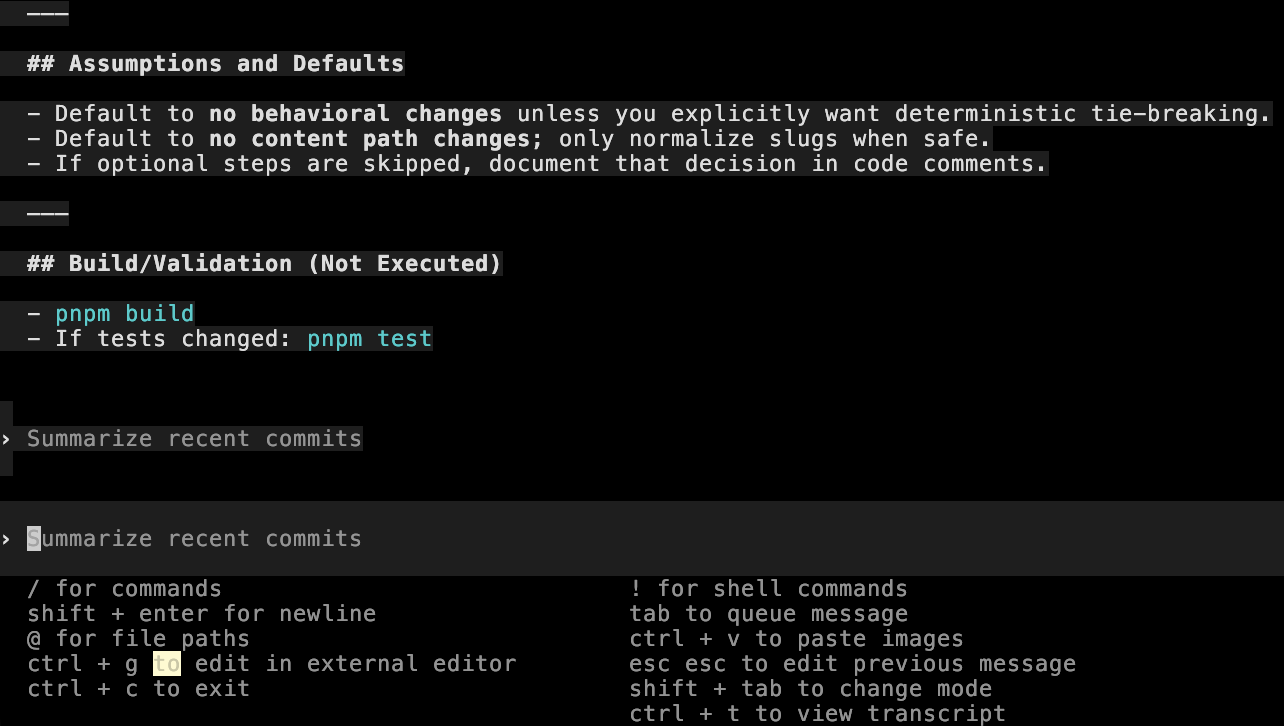
Codex advertises external editor support for plan editing, but this feature does not work as expected.
When running VISUAL=zed codex and pressing ctrl+g, only an empty file is opened rather than the current plan or prompt content.
No additional details for this agent.
Orchestrator Mode
Delegate complex tasks to specialized agents.
Plan Mode on steroids. The agent delegates each task to specialized agents, which allows it to achieve:
- Each agent has only the required context. Previous unrelated history doesn’t affect your task. For example, if you run tests in a cycle and have a lot of useless logs in the history, a new agent for the next edit task doesn’t see the test logs because they are not needed for editing.
- You can run agents in parallel if needed, because the orchestrator controls their execution area. For example: parallel fetching of information from the web.
No additional details for this agent.
No additional details for this agent.
Kilo Code supports orchestrator mode, which delegates complex tasks to specialized agents.
This allows each agent to have only the required context, preventing unrelated history from affecting your task. It also enables parallel execution when needed.
No additional details for this agent.
No additional details for this agent.
No additional details for this agent.
Todos
Track progress with auto-generated task lists.
You have to generate todo-list before plan execution to move the progress tracking from the model to your agent. It is useful for complex features because a model has no chance to skip any required step in the plan.
How it works:
When you build a plan and click execute. The agent creates a numbered list of subtasks that need to be completed. Each todo item represents a specific action or milestone in the implementation. As the agent executes the plan, it marks items as complete, giving you real-time visibility into progress.
Why it matters:
- Agent forces a model to follow the plan step by step;
- Agent can run some steps by himself without calling the model. For example: tests. If they are green, the agent don’t need to include the result into the context;
- Clear visibility into what’s been completed;
- Easier to review and approve before execution;
- Agent can create checkpoints between steps for easy rollback if needed. You don’t need rollback all the work if some step was finished incorrectly.
Cursor creates todos automatically when you build a plan.
The auto-generated task list shows progress as each step is completed, giving you clear visibility into what’s been done.
Claude Code supports the todos mechanism, but the agent does not enforce todo creation. The model may skip creating todos, so you need to explicitly ask it to create a todo list after finishing your plan.
Kilo Code supports todos but requires explicit request. You need to explicitly ask it to create todos - it’s not automatic.
Recommendation: write “create todos and execute” when using Architect mode for implementation.
OpenCode supports todos but requires explicit request. You need to explicitly ask it to create todos - it’s not automatic.
Recommendation: write “create todos and execute” when executing a plan.
No additional details for this agent.
No additional details for this agent.